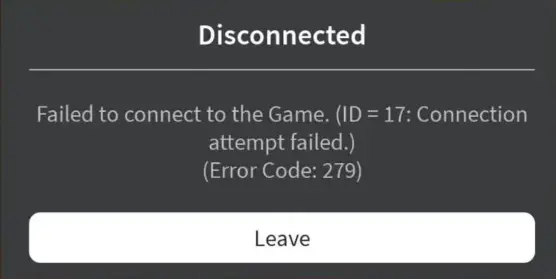
Roblox Error 279 is one of the most common connection-related problems players encounter when trying to join a game. This error typically appears with message “Failed to connect to the game”, preventing users from loading into servers. While the issue is frustrating, it is also completely fixable — and in most cases, the solution takes only a few minutes. In this detailed guide, we break down what Roblox Error 279 means, why it happens, how to fix it, and how to prevent the error from returning.
What Is Roblox Error 279?
Roblox Error Code 279 is a network connectivity issue that occurs when the client cannot establish a stable connection with the game server. Unlike Error 277 (disconnect during gameplay), Error 279 usually appears before a game loads, indicating a blocked connection or slow response.
Common Causes of Roblox Error 279
This error can have several root causes:
1. Slow or Unstable Internet Connection
If your connection drops packets or loads too slowly, the server may block the request.
2. Browser Restrictions or Outdated Browser
Roblox is sensitive to outdated browser versions, especially on Chrome, Firefox, and Edge.
3. Firewall or Antivirus Blocking Roblox
Security tools sometimes mistakenly prevent Roblox from loading required ports.
4. Corrupted Roblox Files or Outdated Client
Damaged installation files may lead to loading errors.
5. Game with Too Many Assets
Some Roblox experiences with heavy scripts, large maps, or complex assets load slower and may trigger Error 279.
How to Fix Roblox Error 279: Step-by-Step Solutions
1. Check Your Internet Connection
- Restart your router.
- Use a wired connection if possible.
- Try running a speed test (you need at least 5–10 Mbps).
2. Disable Browser Extensions
Extensions like ad blockers, script blockers, or VPNs may interfere with Roblox.
- Temporarily disable them.
- Restart your browser afterward.
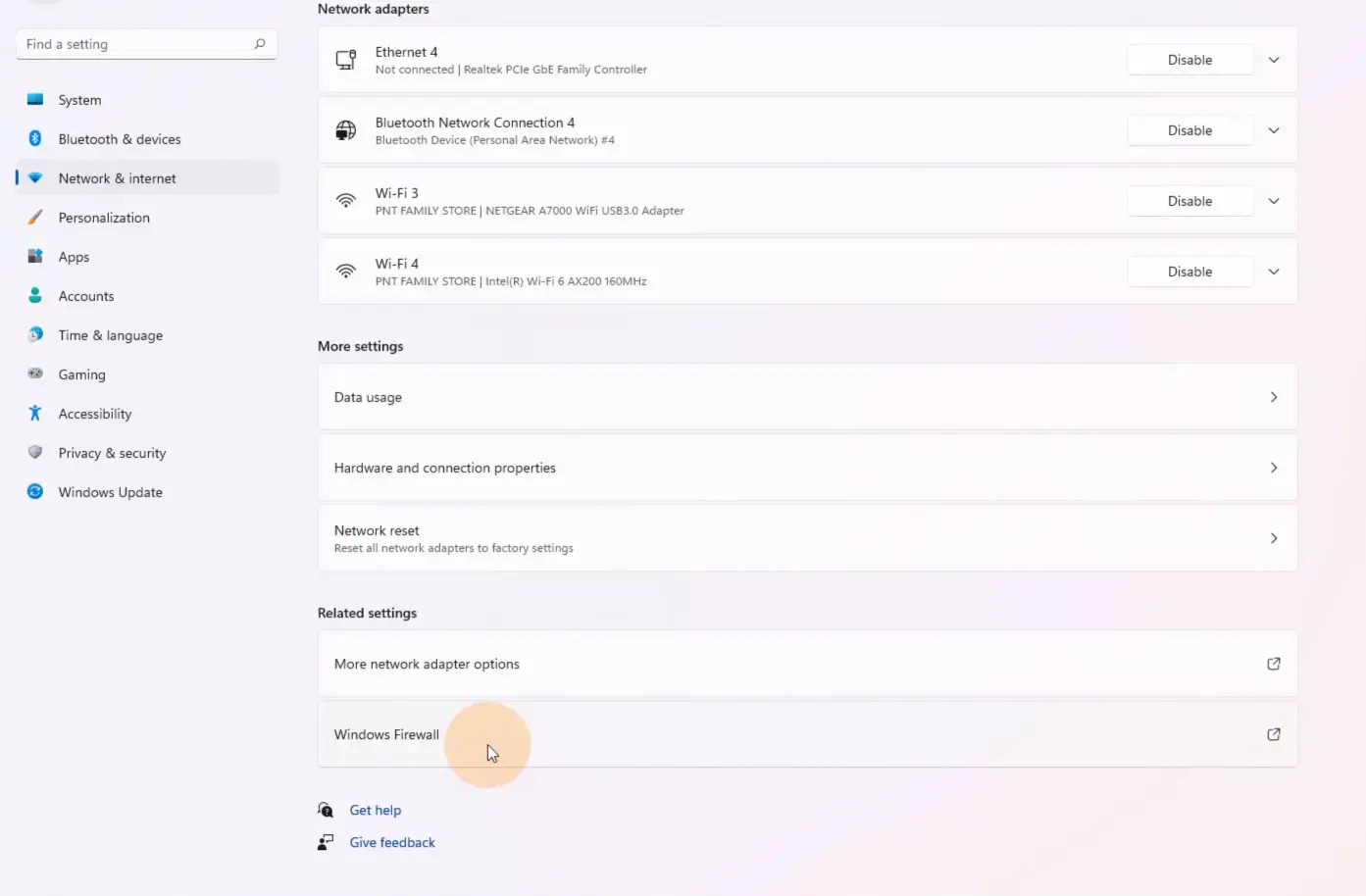
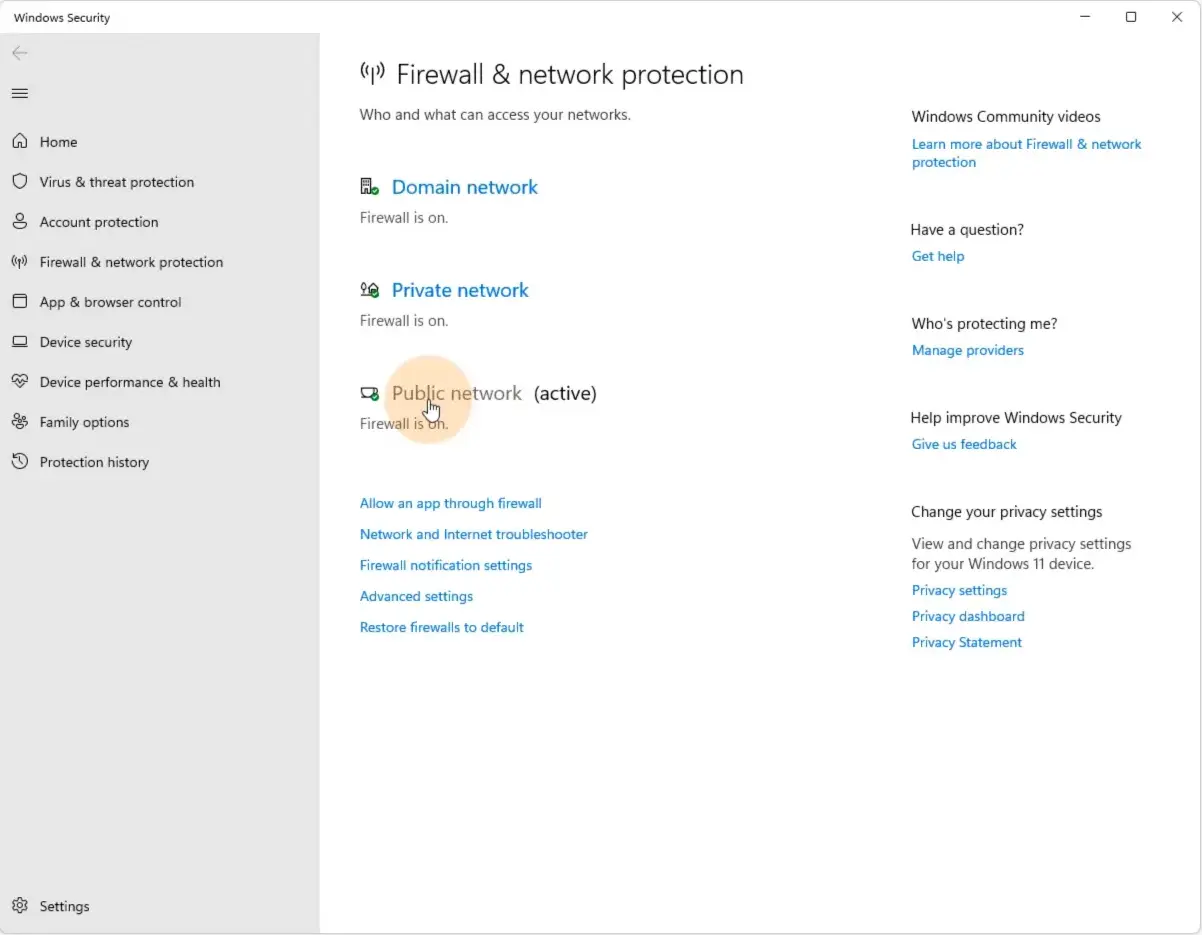
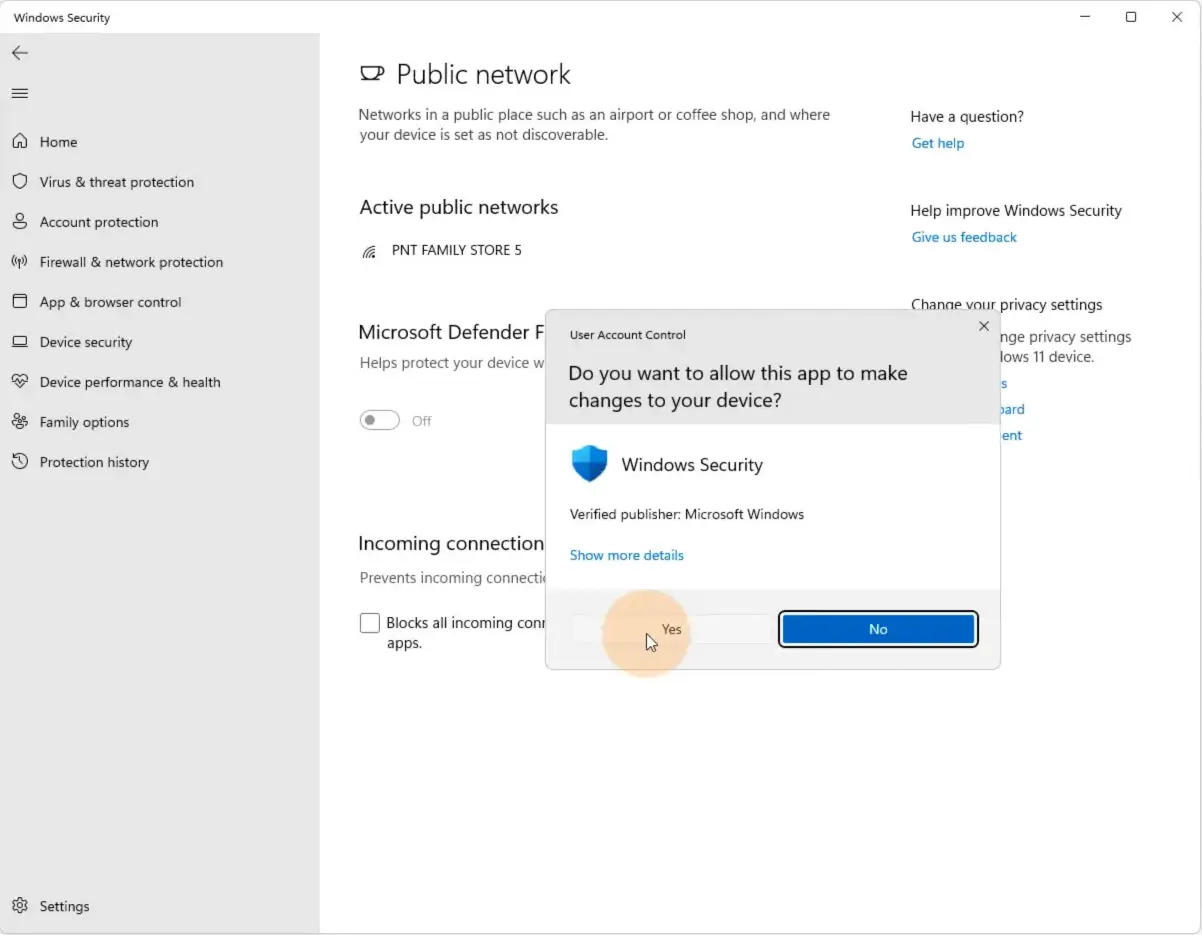
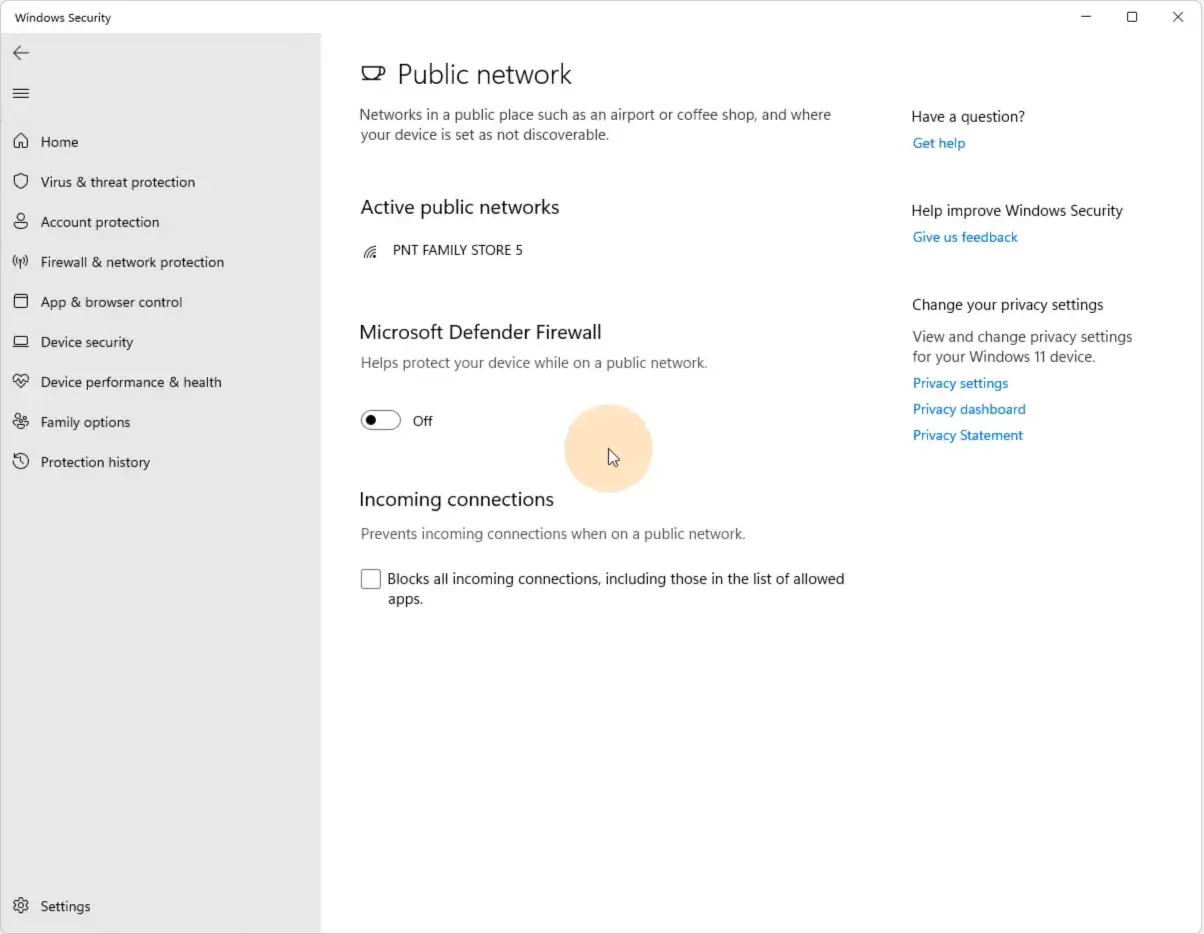
3. Allow Roblox Through Firewall
Windows Firewall Fix:
- Open Control Panel → Windows Defender Firewall
- Click Allow an app through Windows Firewall
- Ensure Roblox Player and Roblox Studio are checked.
4. Disable Antivirus Restrictions
Many antivirus programs block Roblox traffic unintentionally. Add Roblox to the exclusions list.
5. Reinstall Roblox
A clean reinstall often resolves most connection errors:
- Remove Roblox from your system
- Download the latest version from the official website
6. Reset Browser Settings
Corrupted or modified settings may slow down the client:
- Reset Chrome/Firefox/Edge to defaults
- Clear cache and cookies
7. Check Required Roblox Ports
Roblox uses port TCP 49152–65535.
If your router blocks them, open ports manually via router settings.
Advanced Fixes (For Persistent Issues)
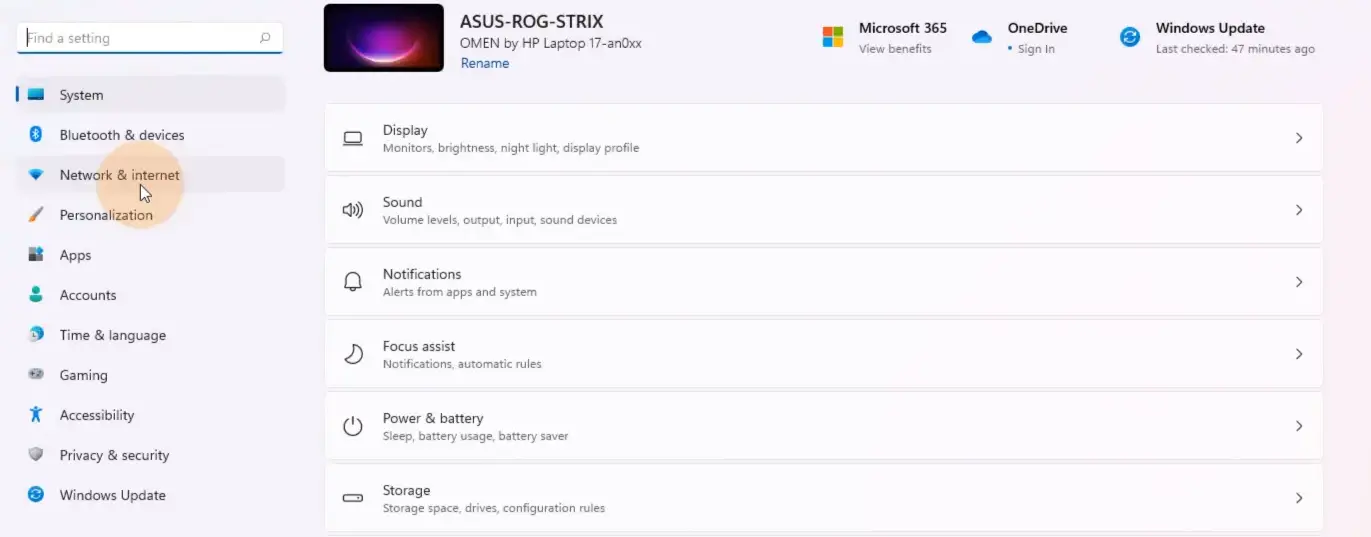
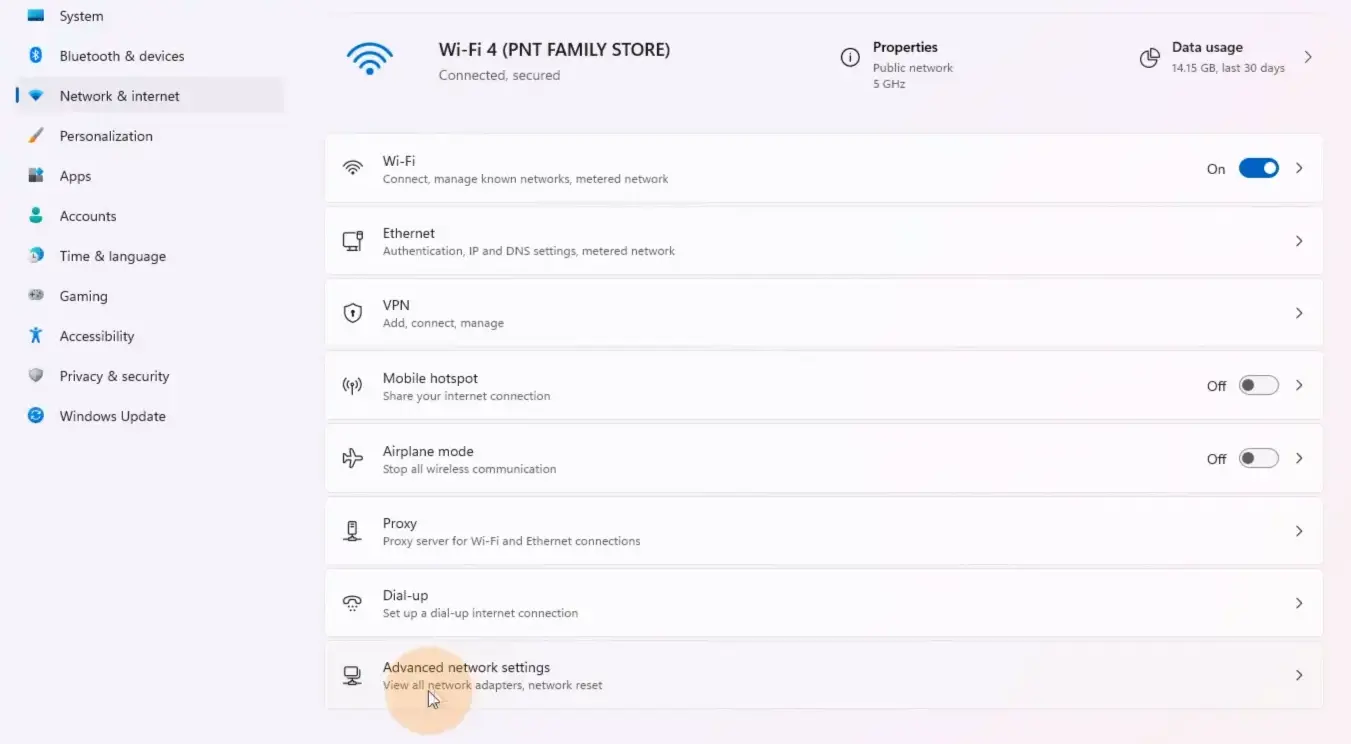
- Use DNS Servers
- Disable VPN or Proxy
- Use Roblox App (Not Browser)
The Microsoft Store version is more stable for many users.
How to Prevent Roblox Error 279 in the Future
To avoid repeated connection issues:
- Keep your browser updated
- Ensure Roblox is added to firewall’s trusted list
- Avoid unstable Wi-Fi or overloaded networks
- Keep your system drivers updated
- Don’t use VPNs while playing Roblox
Following these tips drastically reduces the risk of encountering Error 279 again.
When Error 279 Is Caused by the Game (Not You)
Sometimes the issue comes from:
- A problematic Roblox experience
- Server overload
- Developer-side scripting errors
If Error 279 appears only in one game, the problem is likely with the game itself.
Conclusion
Roblox Error 279 is annoying but rarely serious. In most cases, it comes down to basic connectivity, browser settings, firewall restrictions, or outdated files. By applying the methods in this guide — from resetting your browser to reinstalling Roblox — you can resolve the issue quickly and enjoy uninterrupted gameplay. If the problem continues after trying all steps, the issue is likely tied to Roblox servers or a specific game. In that case, waiting a few hours or reporting the bug may be the best option.