Windows 11 is marketed as the most advanced gaming OS Microsoft has ever released — but anyone who has tried launching classic PC titles knows the reality isn’t always so smooth. Many older games refuse to start, crash on boot, or suffer from missing libraries and broken graphics. The good news? Most of these problems can be fixed. This comprehensive guide explains why old games don’t work on Windows 11 and provides step-by-step solutions to get them running again.
Why Old Games Fail to Launch on Windows 11
While Windows 11 delivers modern security improvements, updated drivers, and stricter system architecture, these same upgrades can disrupt older software. Classic games often struggle because of:
- Outdated graphics engines no longer compatible with current DirectX versions
- Missing legacy libraries that Windows 11 does not include by default
- New security features blocking old executable files
- Driver conflicts with older 32-bit or DirectDraw-based applications
- Removed components that older games relied on
In other words — the deeper Windows evolves, the harder it becomes for retro titles to keep up. But don’t worry: there are reliable ways to restore compatibility.
1. Enable Compatibility Mode
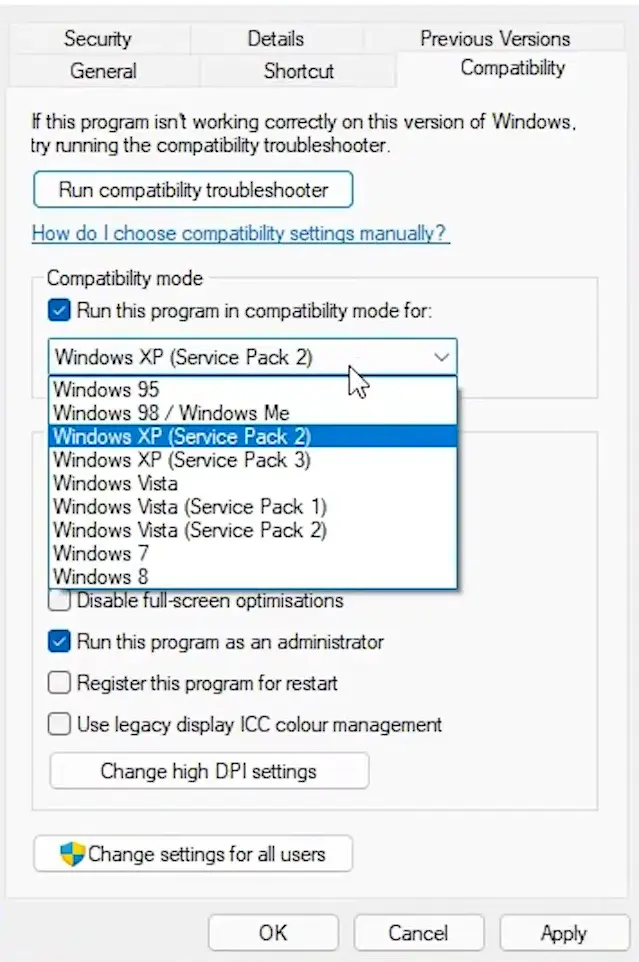
The fastest fix for many players is using Windows 11’s built-in Compatibility Mode. It simulates the behavior of older systems like Windows XP, 7, or 8.
How to enable it:
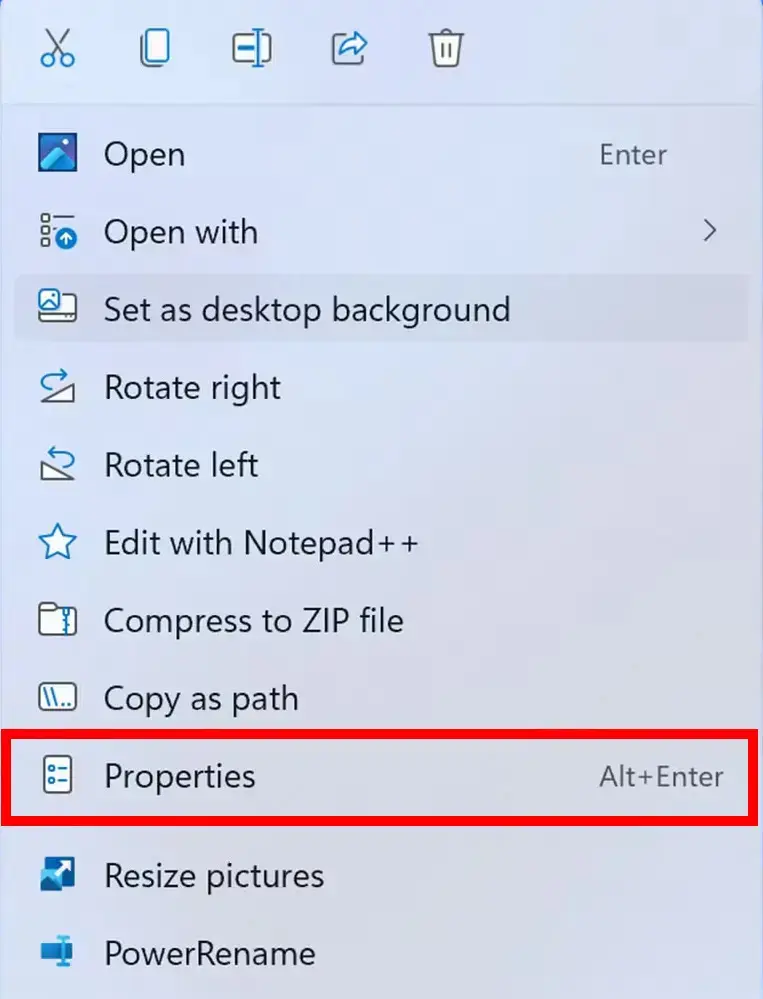
- Right-click the game’s .exe file.
- Select Properties → Compatibility.
- Tick Run this program in compatibility mode for…
- Choose an earlier Windows version.
- Enable Run as administrator.
This often resolves issues with crashing, resolution problems, or missing video output.
2. Use Windows’ Program Compatibility Troubleshooter
If manual settings don’t help, let Windows diagnose the issue automatically.
Go to:
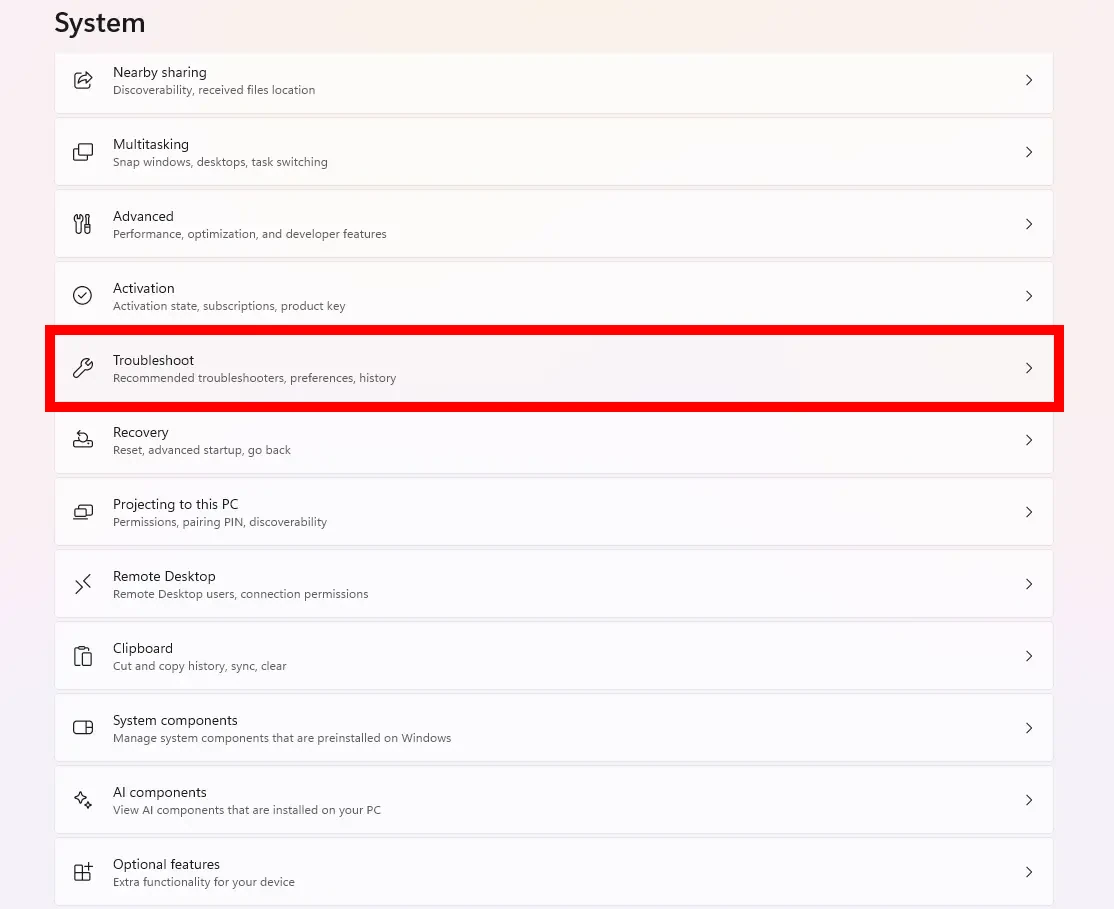
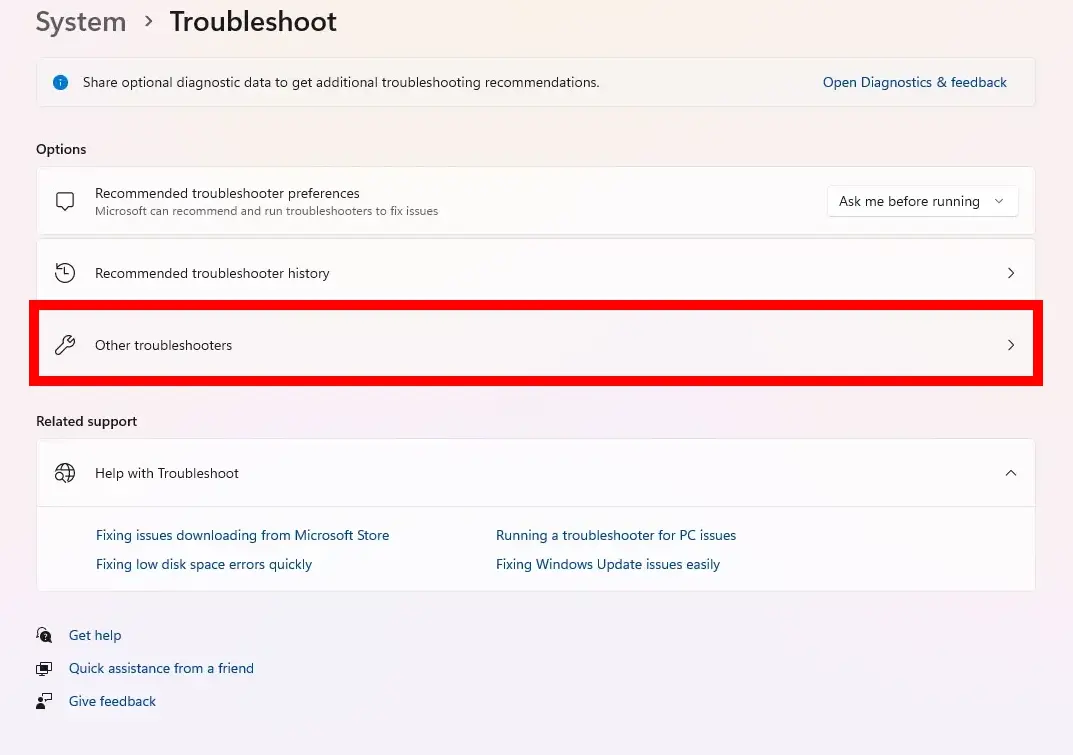
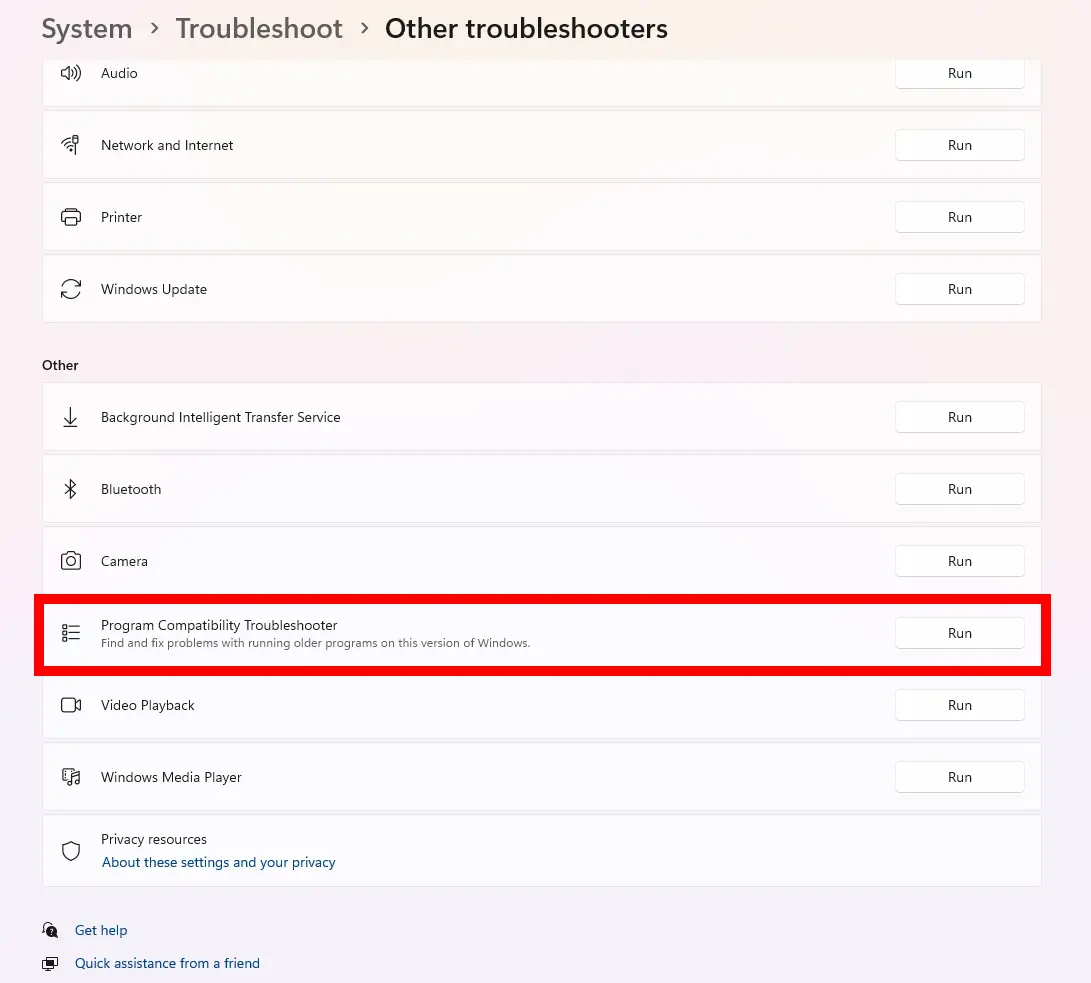
Settings → System → Troubleshoot → Other troubleshooters → Program Compatibility Troubleshooter
Add the game to the list and run the diagnostic tool. Windows will test different configurations and apply the most suitable one.
3. Activate Legacy Windows Components
Many older games rely on deprecated system files that Windows 11 disables by default, such as DirectPlay or legacy media components.
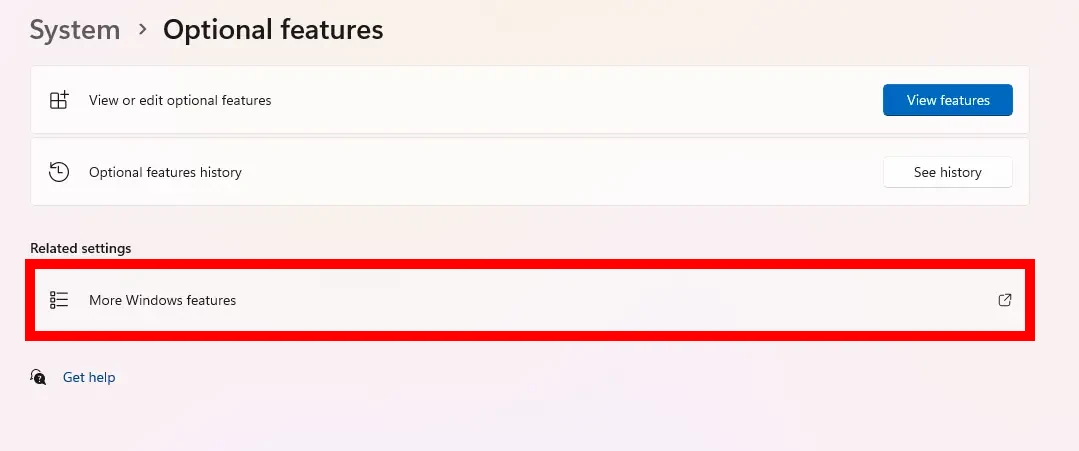
To enable them:
- Open Settings.
- Go to System → Optional Features → More Windows Features.
- Find Legacy Components.
- Check the box and confirm.
These components restore missing runtime libraries required by older game engines.

4. Try Running the Game in Windowed Mode
Fullscreen mode can cause black screens or crashes in classic games. Running them in a window — or forcing a windowed mode through tools like DXWnd — often bypasses these issues. This is especially useful for older DirectX 5–8 titles and for games designed for CRT-era resolutions.
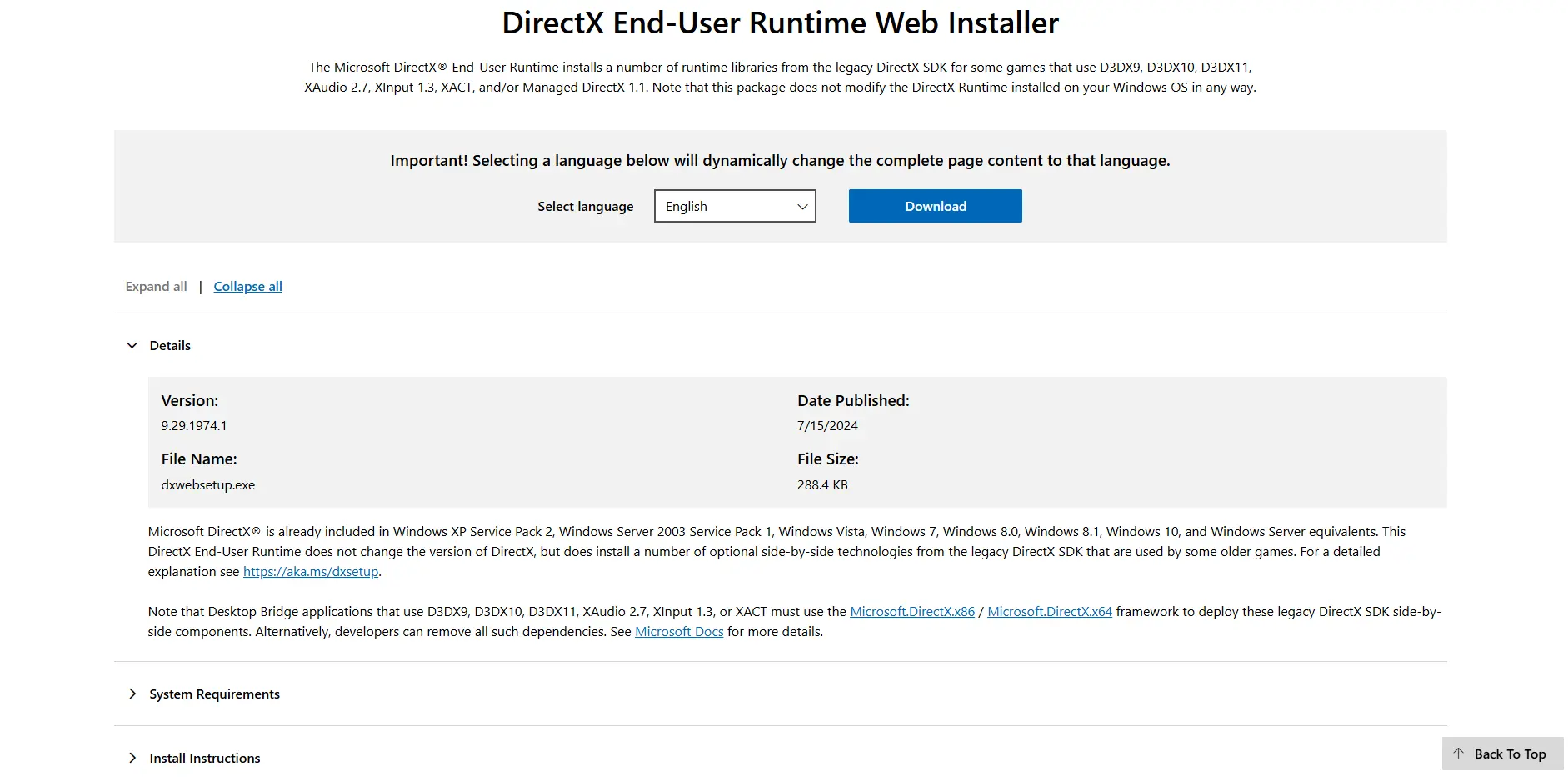
5. Install Missing DirectX Libraries
Many older PC games require legacy DirectX files that no longer ship with Windows 11.
Solution: Install DirectX End-User Runtimes
This official Microsoft package adds older DLLs, preventing errors like:
- d3dx9_43.dll missing
- DirectX initialization failed
- Unable to create 3D device
If the game includes a DirectX installer in its folder, run that as well — it restores exactly the versions the title expects.
6. Use Community Fixes, Patches, and Fan Mods
For some classic titles, the most reliable fixes come from the gaming community.
You can find:
- unofficial patches
- community compatibility updates
- widescreen and HD texture mods
- config tweaks for Windows 11
- DirectX wrappers
Forums like PCGamingWiki and ModDB are treasure troves for retro gaming fixes.
7. Use Emulators or Virtual Machines for Very Old Games
If a game is too outdated — especially those designed for DOS, early Windows, or old consoles — emulation is often the easiest solution.
Tools such as:
- DOSBox
- PCSX2
- PPSSPP
- RetroArch
- Virtual machines with Windows XP/7
create a controlled environment where legacy titles run flawlessly without modern compatibility conflicts.
Сonclusion
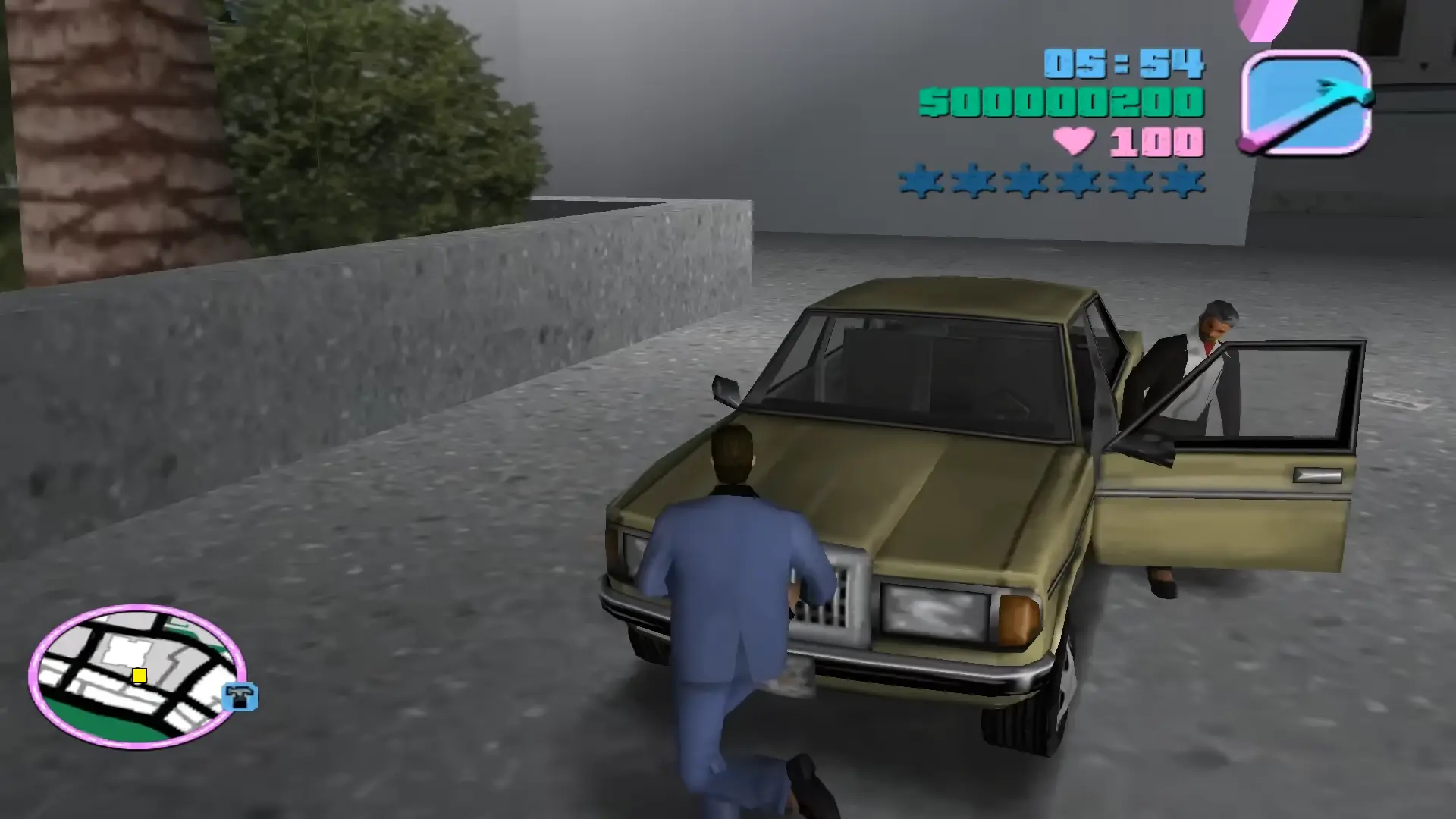
Old PC games and Windows 11 don’t always get along — but that doesn’t mean retro gaming is impossible. With compatibility mode, legacy components, missing DirectX libraries, and community fixes, most classic titles can be restored to full functionality. And when nothing else works, emulators offer a reliable fallback.
Whether you’re replaying a childhood favorite or diving into a forgotten cult classic, these tools and methods ensure your library stays alive — no matter how modern your system becomes.